
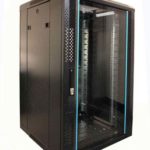
 FREE STANDING CABINETS
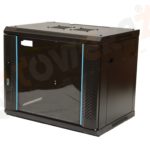 WALL MOUNTED CABINETS
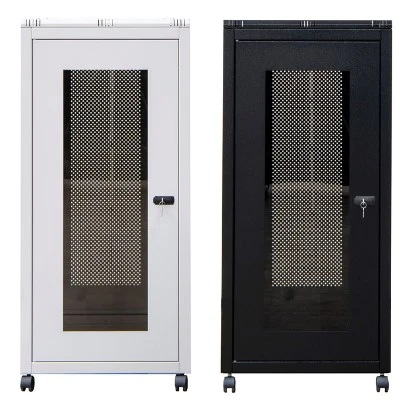
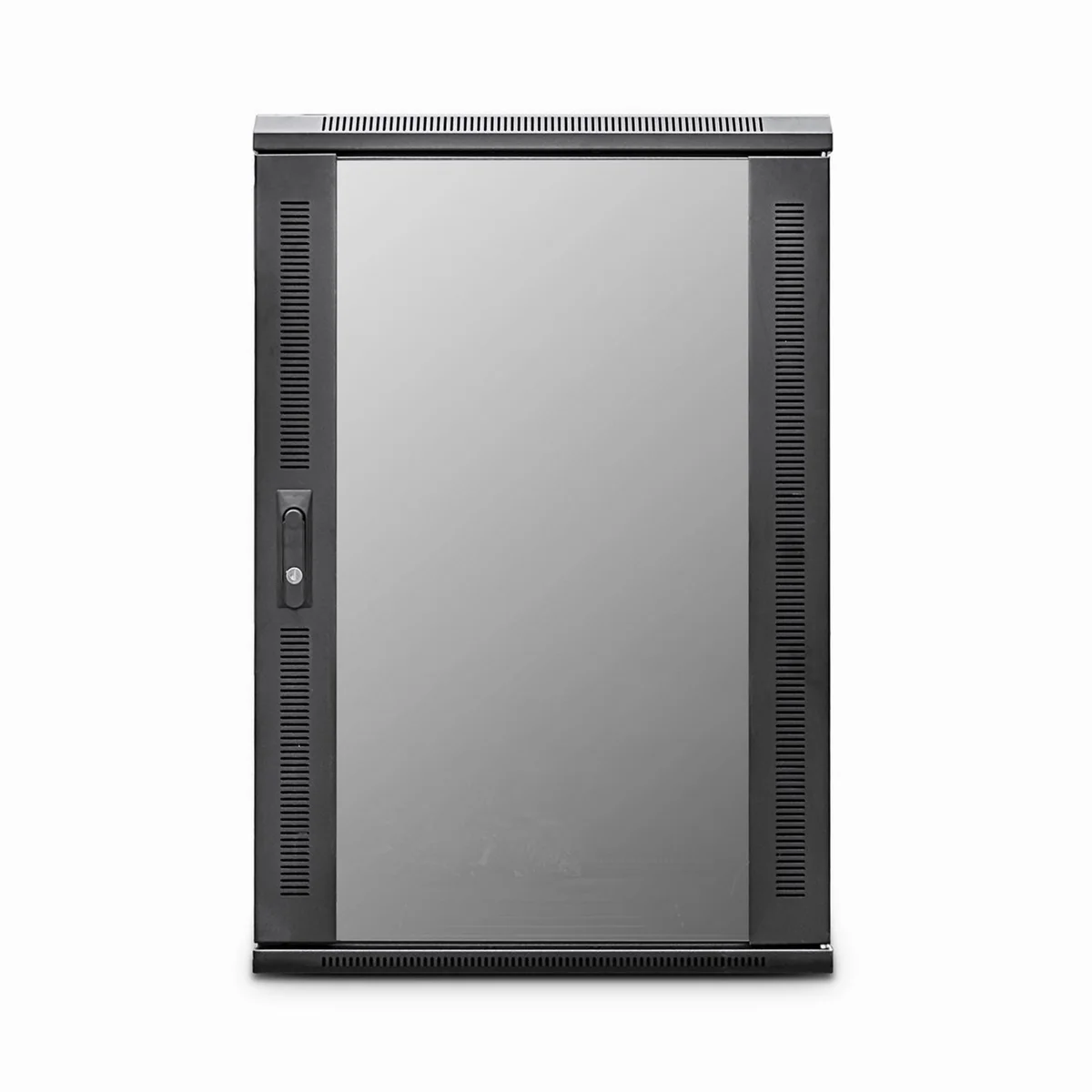
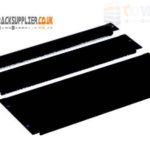 Blanking panel
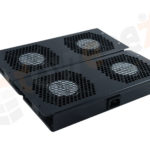 fan units
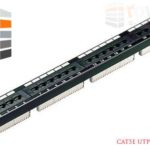 PATCH PANEL
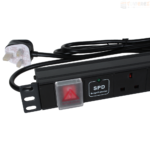 Power Distribution Unit
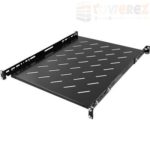 SHELVES
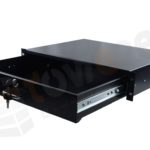 RACK DRAWER
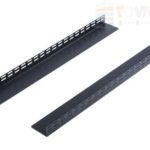 TOWEREZ RAILS
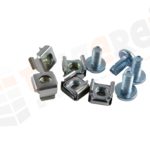 CAGE & NUTS

Can You Put a Router in a Wall-Mounted Network Cabinet? UK Airflow and Wi-Fi Guide

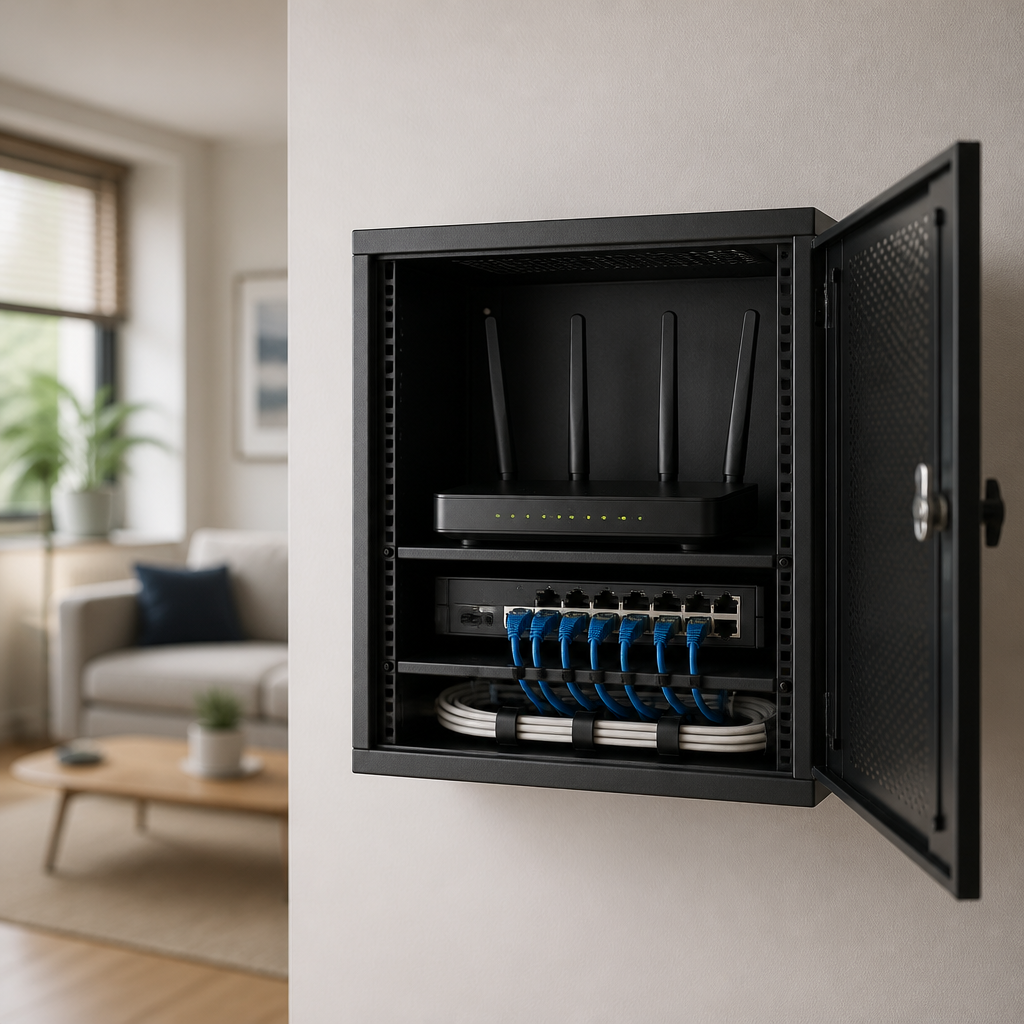
Yes, you can put a router in a wall mounted network cabinet, but it is not always the best location. The cabinet must provide adequate ventilation, enough room for the router and power supply, and a sensible plan for Wi-Fi coverage. In many UK homes, a wired router, switch and patch panel can go in the cabinet, while the wireless access point is positioned elsewhere for better signal and cooling.
A wall-mounted cabinet can create a neat, secure home network installation by keeping cables, network equipment and power connections organised. However, enclosing a router in a small metal box may increase heat and reduce wireless performance. The right decision depends on the cabinet material, router design, ventilation, broadband equipment and how much Wi-Fi coverage your home needs.
Can you put a router in a wall mounted network cabinet?
You can, provided the cabinet is large enough and designed or modified for safe ventilation. A router should not be tightly wedged between equipment, pressed against a hot power supply or enclosed in an unventilated metal cabinet. Follow the manufacturer’s installation instructions, keep air vents clear and use the correct mains equipment.
There are two separate issues to consider:
- Networking: the router needs suitable connections for the broadband service, switch, access points and other wired devices.
- Radio and heat: the router needs airflow and a location that does not unnecessarily weaken Wi-Fi signals.
If the cabinet contains only a broadband modem or router that will be used as a wired gateway, the arrangement can work well. If the same device is expected to provide strong Wi-Fi throughout the house, placing it inside a metal enclosure may be a poor compromise.
Why cabinet airflow matters
Routers, switches, fibre equipment and power supplies all produce heat. A router may feel only warm during ordinary use, but a closed cabinet can allow heat to build up over time. Excessive heat can cause instability, reduce component life or trigger thermal protection. A cabinet mounted in a loft, utility room or airing cupboard may become particularly warm during summer.
Features that improve ventilation
- Perforated or louvred front, sides and rear panels.
- Ventilation openings at the bottom and top, allowing warm air to rise.
- Space around the router rather than equipment packed tightly together.
- Cable entry points that do not block vents.
- A cabinet depth that accommodates the router, plugs and bend radius of cables.
Natural convection is often enough for a small, lightly loaded installation when the cabinet has generous ventilation. A fan may be appropriate in a larger or warmer enclosure, but it should be quiet, reliable and protected from dust. Avoid adding a fan as a substitute for a fundamentally undersized cabinet.
Do not cover ventilation holes with insulation, carpet, loose cable bundles or storage items. Check the equipment after installation during heavy use. If it becomes unusually hot, repeatedly reboots or loses connection, improve airflow and investigate before continuing to operate it in the enclosure.
How a wall-mounted cabinet affects Wi-Fi
The cabinet’s effect on Wi-Fi depends largely on its construction. Metal can reflect or absorb radio energy, creating weaker coverage or uneven signal patterns. A router behind a metal door may still provide a connection in the same room, but performance can decline through walls and at the edges of the property. A metal cabinet can also produce dead spots that are difficult to predict from a simple speed test beside the cabinet.
Plastic or non-metallic cabinets generally interfere less with wireless signals, although the router’s position, aerial design, building materials and nearby electrical equipment still matter. A wooden enclosure may be less disruptive than steel, but it should not be sealed tightly around warm equipment.
Better options for wireless coverage
- Put the wired router or broadband gateway in the cabinet and install a separate wireless access point in an open, central position.
- Use Ethernet cabling from the cabinet to one or more ceiling, wall or shelf-mounted access points.
- Use a mesh system with wired backhaul where practical, rather than hiding every wireless node in the cabinet.
- Keep the access point away from large appliances, thick masonry, radiators and enclosed cupboards.
This separates the job of routing internet traffic from the job of broadcasting Wi-Fi. It also makes future upgrades easier: you can replace an access point without disturbing the cabinet’s core wiring.
Choosing the right cabinet size
A compact cabinet may look tidy, but the smallest enclosure is rarely the best choice for a router installation. Measure every item before buying, including the router, broadband modem or optical network terminal, switch, patch panel, power strip and cable plugs.
| Item to check | Why it matters |
|---|---|
| Internal width and height | Allows equipment to fit without blocking vents or sockets. |
| Internal depth | Provides room for the router and cable bends behind it. |
| Rack units | Indicates how many rack-mounted devices can be installed, but not all desktop routers use rack fittings. |
| Door clearance | Prevents plugs, aerials and cables being crushed when the door closes. |
| Ventilation area | Helps warm air escape and cooler air enter. |
| Wall load and fixings | Ensures the wall and anchors can safely support the cabinet and equipment. |
Leave practical working space rather than filling every available centimetre. You may need room to unplug equipment, read labels, add a switch or replace a power supply. A small amount of spare capacity is especially useful if you expect to add Ethernet cabling, cameras, a telephone adapter or a home automation hub.
Wiring a router inside a network cabinet
Plan the signal path before fixing the cabinet to the wall. Depending on your broadband service, the order may be fibre termination equipment, router, switch, patch panel and room outlets. Your internet service provider may require its own modem, optical network terminal or router, so check which device performs routing, authentication and wireless functions.
- Bring the incoming broadband cable or fibre termination to an approved location.
- Connect the modem or optical network terminal to the router’s internet or WAN port.
- Connect the router’s LAN ports to a switch if more wired ports are needed.
- Connect the switch to the patch panel using short, labelled patch leads.
- Run permanent Ethernet cables from the patch panel to room outlets or access points.
- Secure cables so they do not obstruct ventilation or place strain on connectors.
Use suitable cable management and label both ends of each cable. Keep power leads and data cables orderly, while avoiding tight bends and excessive force on Ethernet plugs. For permanent building cabling, use cable and installation practices appropriate to the environment, and consider a qualified installer for routes through walls, ceilings or fire compartments.
Electrical and mounting safety in the UK
Use the manufacturer’s power adapter and do not overload an extension lead or power distribution unit. A cabinet is not a substitute for proper electrical installation. Keep mains connections accessible enough for safe isolation, and do not place a power supply where dripping water, condensation or cable strain could affect it.
Wall-mounted equipment can be heavier than it appears once a switch, patch panel and cables are added. Fix the cabinet to suitable masonry, timber or other structural support using appropriate fixings. Plasterboard alone may not provide adequate support unless the fixing method is specifically rated for the load.
Do not drill without checking for concealed pipes and cables. If the installation involves new fixed electrical wiring, alterations to a consumer unit or work in a location subject to special conditions, use a competent electrician and follow applicable UK requirements. Keep the networking installation separate from unsafe DIY mains work.
When a cabinet is not the right place for the router
Choose another location if the cabinet is sealed, very small, exposed to high temperatures or made from thick metal and the router must provide whole-home Wi-Fi. It may also be unsuitable if the broadband service requires the router to remain close to the incoming line and that position is at the edge of the property.
A shelf, utility cupboard with open ventilation or a dedicated communications area may be a better compromise. Alternatively, place only the wired network equipment in the cabinet and use a separate access point in the living area or central hallway.
Best-practice rule: put core wired equipment where cables enter the home, but put wireless equipment where people need a reliable signal.
Installation checklist
- Confirm the cabinet’s internal dimensions, ventilation and material.
- Check the router, modem, switch and power supply manufacturer guidance.
- Leave clearance around vents and allow room for cable bends.
- Decide whether Wi-Fi should come from the router or a separate access point.
- Use suitable wall fixings and verify the wall can support the loaded cabinet.
- Provide safe, accessible power without overloading adapters or extension leads.
- Label Ethernet cables and document which room each port serves.
- Test wired speeds, Wi-Fi coverage and equipment temperatures after installation.
- Recheck the cabinet during warm weather and after adding equipment.
Key takeaways
- Yes, a router can be installed in a wall-mounted network cabinet if ventilation, space and power are suitable.
- Metal cabinets can weaken or distort Wi-Fi, particularly when the door is closed.
- A separate, openly positioned access point is usually better for whole-home wireless coverage.
- Do not ignore heat, cable clearance, wall loading or electrical safety.
- Plan the broadband, router, switch, patch panel and access-point layout before mounting the cabinet.
Frequently asked questions
Can a router overheat in a wall-mounted network cabinet?
Yes. Overheating is more likely when the cabinet is small, sealed, crowded or installed in a hot location. Use a ventilated cabinet, keep vents clear and leave space around the router. Investigate excessive heat, instability or repeated reboots.
Will a metal network cabinet block Wi-Fi?
It can weaken, reflect or distort Wi-Fi signals, especially when the router is behind a metal door. For dependable coverage, use Ethernet to connect a separate access point outside the cabinet in a central position.
Should the router or the Wi-Fi access point go in the cabinet?
The router can go in the cabinet when it is well ventilated and mainly provides wired connectivity. The Wi-Fi access point is usually better outside the cabinet, where it has a clearer path to the devices it serves.
How much space should be left around a router?
Follow the manufacturer’s clearance guidance first. If no specific measurement is provided, avoid tight contact with other equipment, keep every air vent unobstructed and allow enough room for plugs and cable bends. More clearance is preferable in a warm or enclosed location.
Can a modem, router and switch share one cabinet?
Yes, if the cabinet has sufficient internal space, ventilation, power capacity and cable management. Arrange the equipment so heat can escape, avoid blocking vents and leave working space for maintenance or future expansion.
{“@context”:”https://schema.org”,”@type”:”FAQPage”,”mainEntity”:[{“@type”:”Question”,”name”:”Can a router overheat in a wall-mounted network cabinet?”,”acceptedAnswer”:{“@type”:”Answer”,”text”:”Yes. Overheating is more likely when the cabinet is small, sealed, crowded or installed in a hot location. Use a ventilated cabinet, keep vents clear and leave space around the router. Investigate excessive heat, instability or repeated reboots.”}},{“@type”:”Question”,”name”:”Will a metal network cabinet block Wi-Fi?”,”acceptedAnswer”:{“@type”:”Answer”,”text”:”It can weaken, reflect or distort Wi-Fi signals, especially when the router is behind a metal door. For dependable coverage, use Ethernet to connect a separate access point outside the cabinet in a central position.”}},{“@type”:”Question”,”name”:”Should the router or the Wi-Fi access point go in the cabinet?”,”acceptedAnswer”:{“@type”:”Answer”,”text”:”The router can go in the cabinet when it is well ventilated and mainly provides wired connectivity. The Wi-Fi access point is usually better outside the cabinet, where it has a clearer path to the devices it serves.”}},{“@type”:”Question”,”name”:”How much space should be left around a router?”,”acceptedAnswer”:{“@type”:”Answer”,”text”:”Follow the manufacturer’s clearance guidance first. If no specific measurement is provided, avoid tight contact with other equipment, keep every air vent unobstructed and allow enough room for plugs and cable bends. More clearance is preferable in a warm or enclosed location.”}},{“@type”:”Question”,”name”:”Can a modem, router and switch share one cabinet?”,”acceptedAnswer”:{“@type”:”Answer”,”text”:”Yes, if the cabinet has sufficient internal space, ventilation, power capacity and cable management. Arrange the equipment so heat can escape, avoid blocking vents and leave working space for maintenance or future expansion.”}}]}